

Preview deployments are available on Pro and Custom plans.
Create preview deployments
Preview deployments are created automatically through pull requests or manually from your dashboard.Automatic previews
Automatic previews are only created for pull requests targeting your deployment branch.


Manual previews
You can manually create a preview for any branch.- Go to your dashboard.
- Select Previews.
- Select Create custom preview.
- Enter the name of the branch you want to preview.
- Select Create deployment.
Redeploy a preview
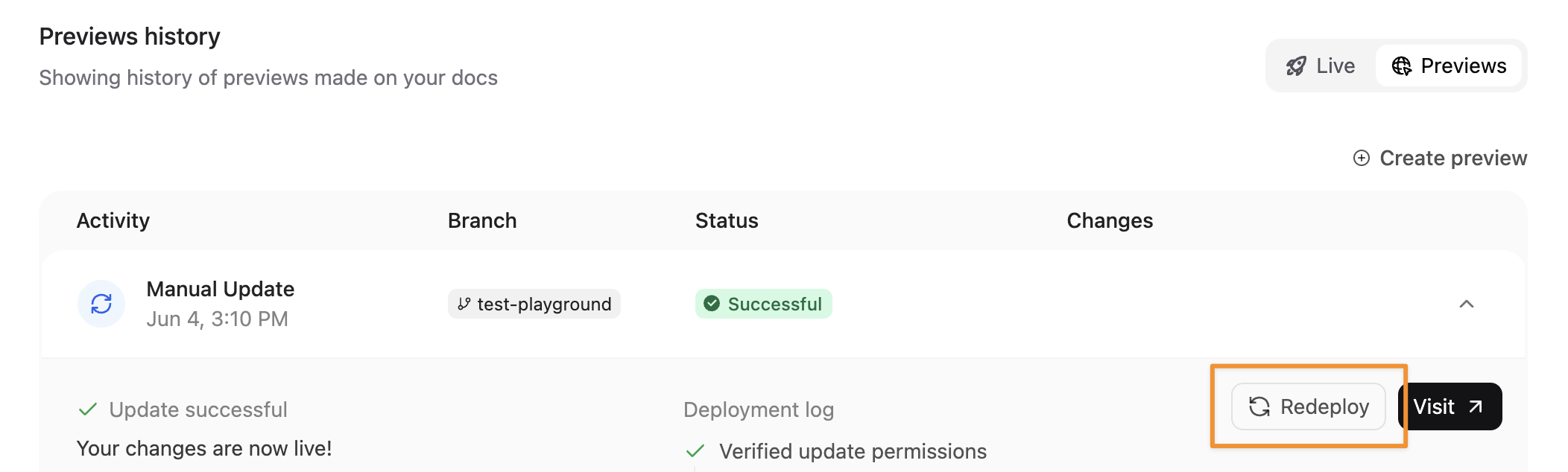
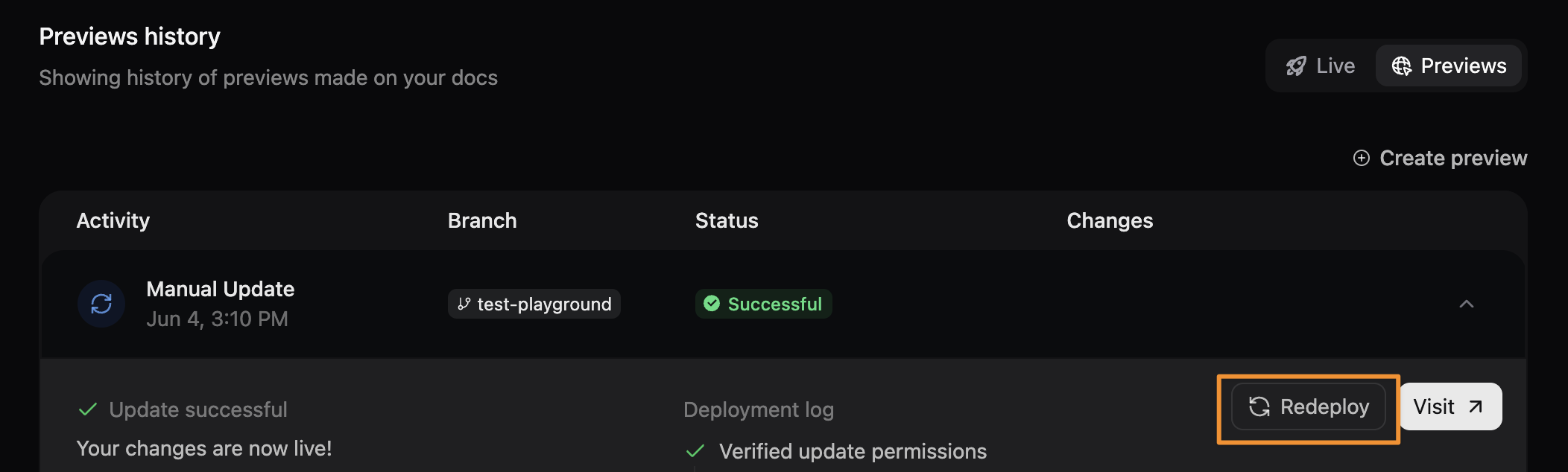
Redeploy a preview to refresh content or retry after a failed deployment.- Select the preview from your dashboard.
- Select Redeploy.
Preview widget
The preview widget appears on preview deployments to help you quickly navigate and review changed files. It displays as a floating button in the bottom-right corner of your preview deployment.Features
- Changed files list: View all files that were added, modified, or removed in the preview deployment
- File status badges: Each file displays a badge indicating whether it was added, modified, or removed
- Search: Filter the changed files list by file path or page title
- Quick navigation: Click any file to navigate directly to that page in the preview
- Drag-and-drop positioning: Drag the widget to reposition it on the left or right side of the screen
Restrict access to preview deployments
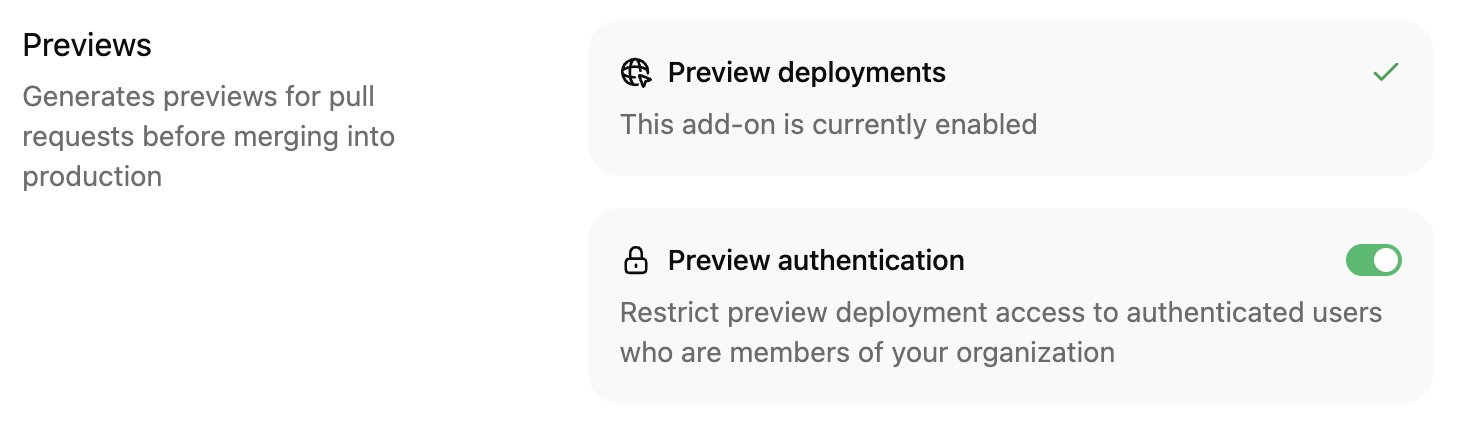
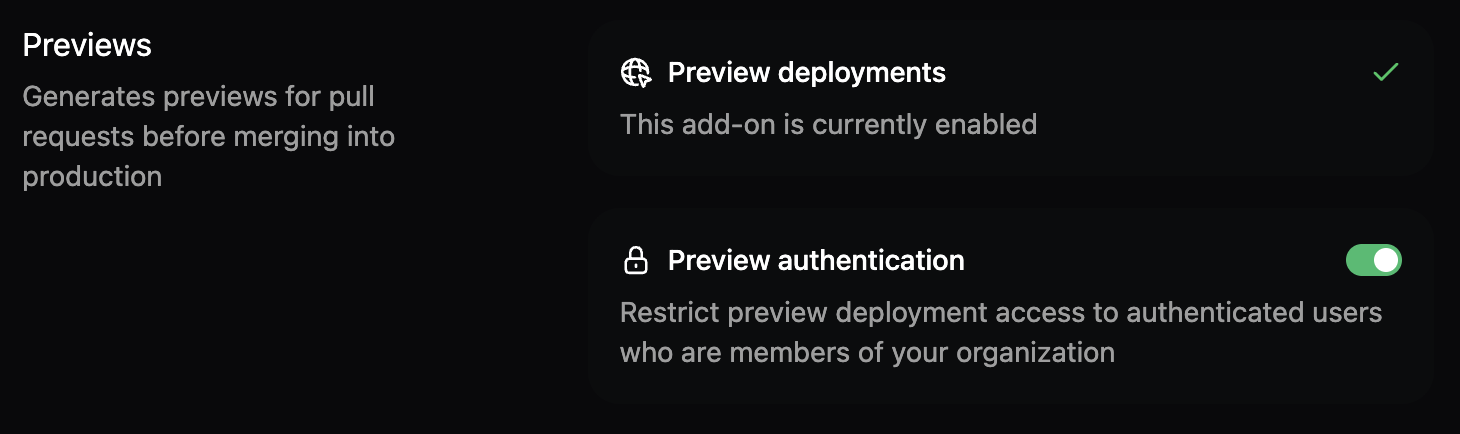
By default, preview deployments are publicly accessible to anyone with the URL. You can restrict access to authenticated members of your Mintlify organization.- Navigate to the Previews section in the Add-ons page of your dashboard.
- Click the Preview authentication toggle to enable or disable preview authentication.
Troubleshooting preview deployments
If your preview deployment fails, try these troubleshooting steps.- View the build logs: In your dashboard, go to Previews and click the failed preview. The deployment logs show errors that caused failures.
- Check your configuration:
- Invalid
docs.jsonsyntax - Missing or incorrect file paths referenced in your navigation
- Invalid frontmatter in MDX files
- Broken image links or missing image files
- Invalid
- Validate locally: Run
mint devlocally to catch build errors before pushing to the repository. - Check recent changes: Review the most recent commits in your branch to identify what changes caused the build to fail.